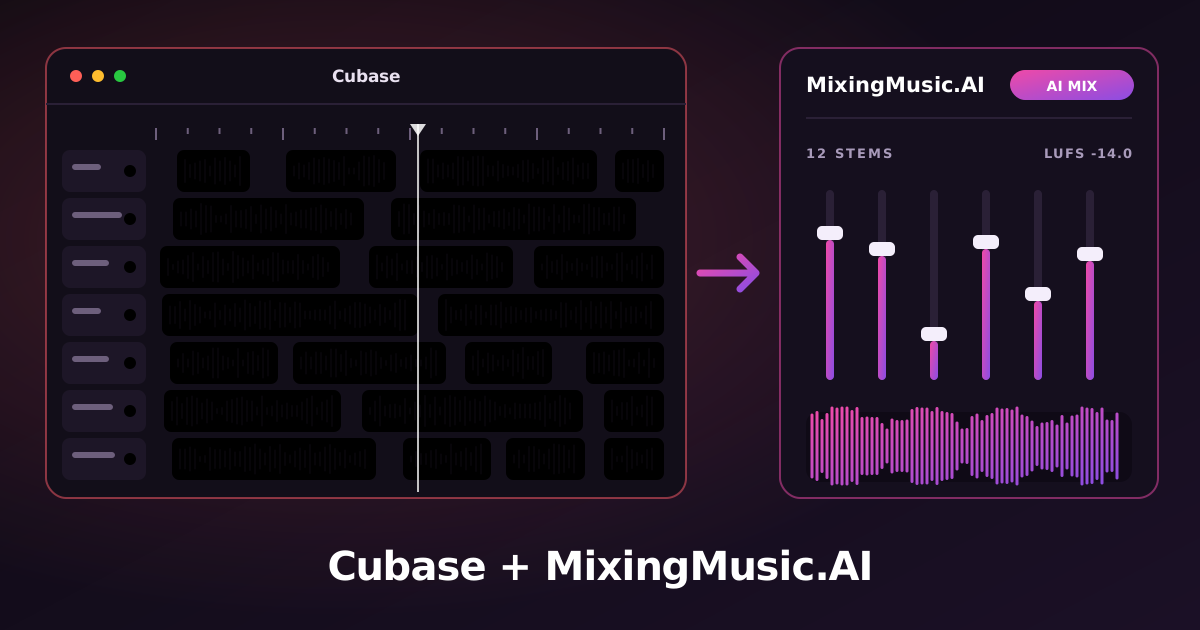
From the Cubase Audio Mixdown to an AI mix and master. Export your Cubase tracks, upload them to MixingMusic.AI and get an AI mix and master in your browser, with nothing to install. MixingMusic.AI does not replace your DAW: it finishes the song you started in it.
Original illustration: from Cubase tracks to the MixingMusic.AI AI mix and master.STEP BY STEP
From Cubase to your master in 4 steps
Step 1
Open File › Export › Audio Mixdown…; in “Channel Selection” turn on “Channel Batch Export”, untick Stereo Out and tick the tracks you want to export.
Where to export: File › Export › Audio Mixdown
Step 2
Set the file name to include the channel name, WAV format at 24 bits and the project’s own sample rate.
Step 3
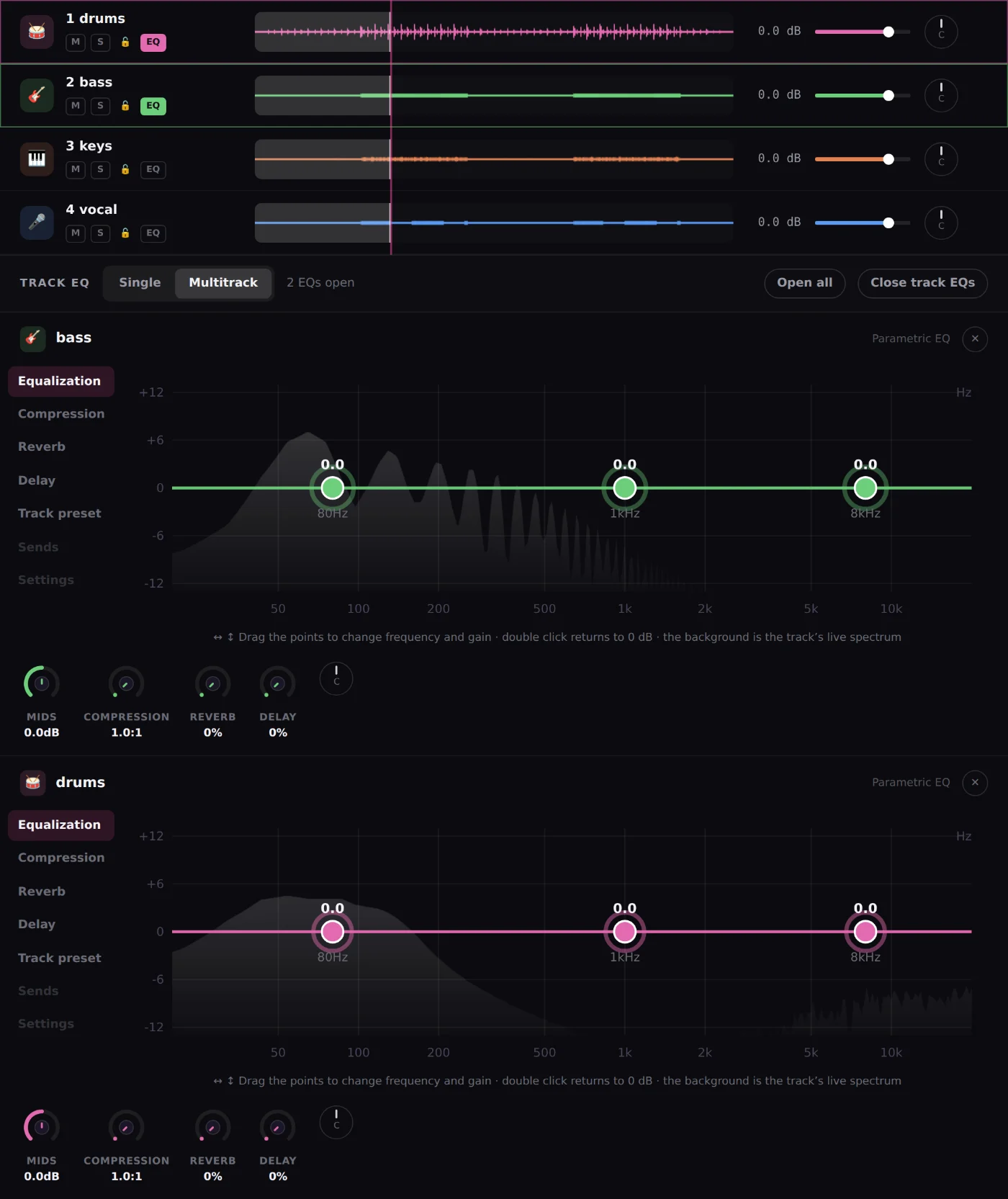
Upload the files to MixingMusic.AI (up to 12 stems as WAV, MP3, FLAC, AAC or M4A). The AI proposes a mix by style and by each track’s instrument.
Step 4
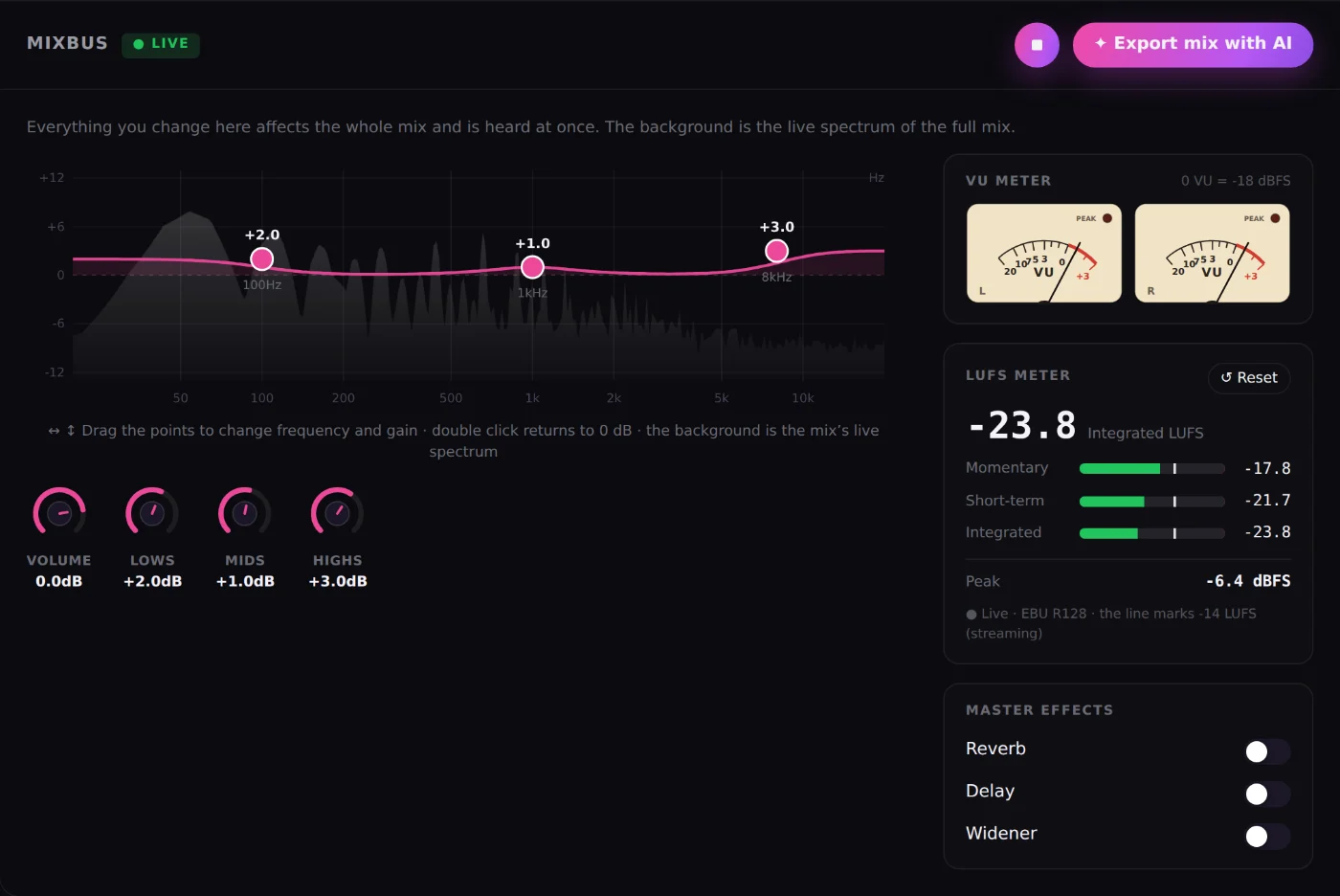
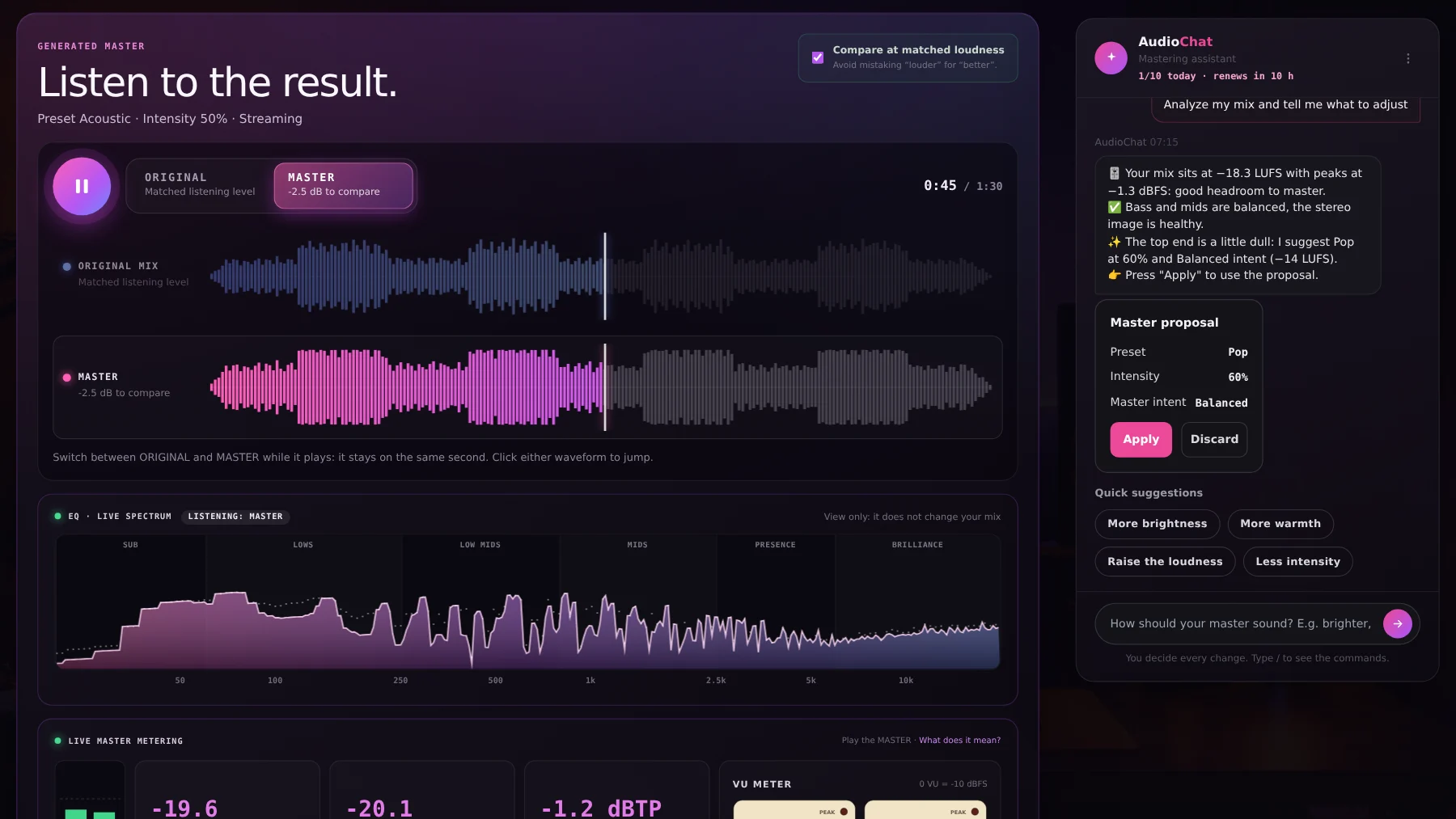
Fine-tune with per-track EQ, the MixBus with LUFS and VU, and AudioChat; then master with AI and compare the original and the master at matched loudness.
SETTINGS THAT MATTER
Exporting from Cubase
Specific to Cubase
Only Stereo Out is ticked by default, which exports everything into a single file: that is why you need to turn on per-channel export.
In the “Multiple” tab you can tick all the audio channels at once with the Audio Channels box.
Remove the limiter or maximizer from Stereo Out before exporting.
True for any DAW
Export every stem from the same start point (the project’s 0:00) and with the same length: that keeps them aligned.
24-bit WAV is ideal. MixingMusic.AI also accepts MP3, FLAC, AAC and M4A.
Remove limiters and maximizers from the Master: mastering happens afterwards, in MixingMusic.AI.
No clipping and with headroom: no stem should reach 0 dBFS.
The limit is 12 stems: group tracks (drums, backing vocals, layers) if you have more.
WHAT HAPPENS NEXT
What MixingMusic.AI does with your stems
01
AI mixing
The AI mixes by style and by each track’s instrument; you decide every change.
Frequently asked questions about Cubase and MixingMusic.AI
How do I export Cubase stems to mix them with AI?
Open File › Export › Audio Mixdown…; in “Channel Selection” turn on “Channel Batch Export”, untick Stereo Out and tick the tracks you want to export. Set the file name to include the channel name, WAV format at 24 bits and the project’s own sample rate. Then upload the files to MixingMusic.AI, where the AI mixes them and you can master the result.
Why does Cubase export one file instead of one per track?
Because the Audio Mixdown only has Stereo Out ticked. Turn on “Channel Batch Export”, untick Stereo Out and select the audio and instrument channels you want as stems.
Do I need Cubase to use MixingMusic.AI?
No. MixingMusic.AI runs in the browser and takes audio files. Cubase is for producing and recording; MixingMusic.AI is for mixing and mastering with AI what you exported.
How many Cubase stems can I upload?
Up to 12 stems per project, as WAV, MP3, FLAC, AAC or M4A. If you have more tracks, group them in your DAW (drums, backing vocals, layers) and export the groups.
Can I master without uploading stems?
Yes. You can upload the final stereo mix and use AI Mastering, or “Improve mix”. To mix track by track with AI you need the stems.
Is it free to try?
Yes: your first mix, one master and one AI try are free. After that there are one-time plans, no subscription.
Official sources
Cubase help pages consulted. Menu names can change with your version.
Cubase is a trademark of Steinberg. MixingMusic.AI is not affiliated with Steinberg and Steinberg does not endorse this page.
Your next Cubase song, mixed and mastered with AI.
Export your stems and hear the difference today.
SIMPLE PRICING
Start free. Pay only once.
No monthly renewal, confusing credits, or annual contracts. Free to try it, Unlimited for the whole studio and AI Advanced to work with the AI every day.
FREE
Try it
US$0
No card and no expiration.
✓ 1 mix from stems
✓ 1 downloadable MP3 master
✓ Up to 12 stems per song
✓ 1 AudioChat AI "Analyze and adjust"
✓ Presets and AI recommendation
FOUNDING PRICEUNLIMITED FOREVER
The whole studio
US$14.99COP $49.900
One payment with Mercado Pago or PayPal.
✓ Unlimited mixes and masters
✓ True 24-bit PCM WAV
✓ Album mode up to 12 songs
✓ Reference track: tone, dynamics and loudness
✓ AudioChat AI: 10 messages a day
FOUNDERS OFFERAI ADVANCED FOREVER
Your AI engineer
US$99US$69COP $259.000
One payment. Already on Unlimited? Pay only the difference.
✓ Everything in Unlimited
✓ AudioChat AI up to 100 messages a day
✓ AI on every track and on the MixBus
✓ Automatic "Analyze and adjust" or tell it what to do