
Specific to Pro Tools
- With Consolidate every clip starts at the same point and the stems stay aligned.
- If you export with Bounce Mix, do it stem by stem and with the same time selection.
- 24-bit WAV and no limiter on the master.
From your Pro Tools sessions to an AI mix and master in minutes. Export your Pro Tools tracks, upload them to MixingMusic.AI and get an AI mix and master in your browser, with nothing to install. MixingMusic.AI does not replace your DAW: it finishes the song you started in it.
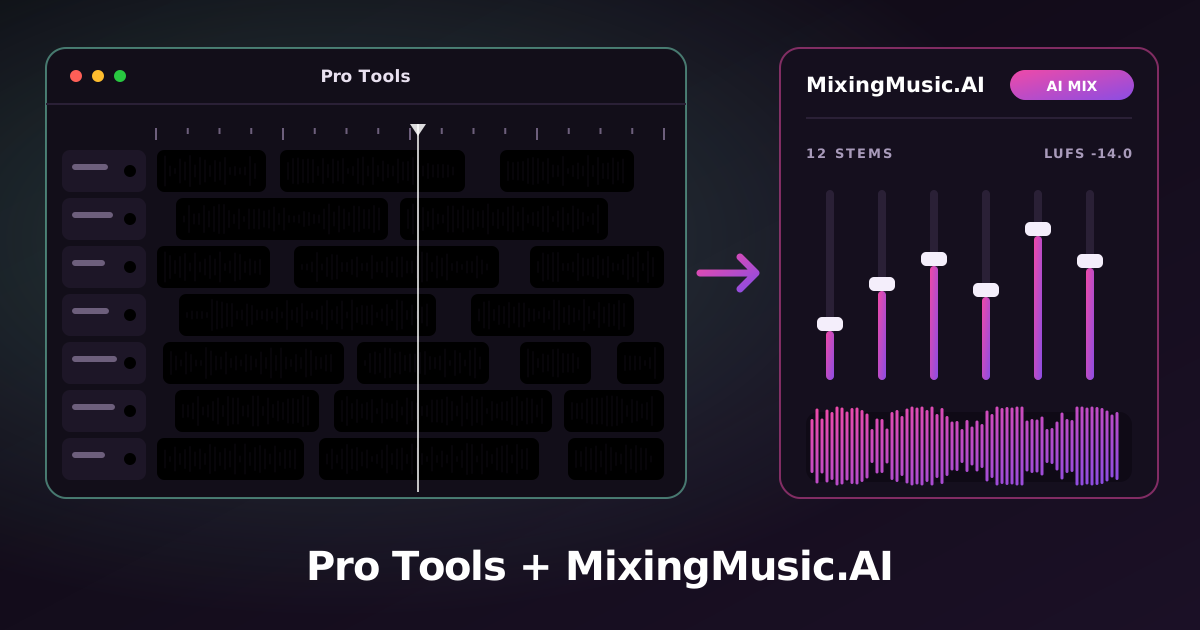
Consolidate each track into a single clip that starts and ends with the song (and Commit if you want the plugins printed into the audio).
Where to export: Clip List › Export Clips as FilesSelect the clips in the Clips List, open its menu and choose “Export Clips as Files…” in WAV format. Alternative: assign each stem to a bus or output and use File › Bounce Mix.
Upload the files to MixingMusic.AI (up to 12 stems as WAV, MP3, FLAC, AAC or M4A). The AI proposes a mix by style and by each track’s instrument.
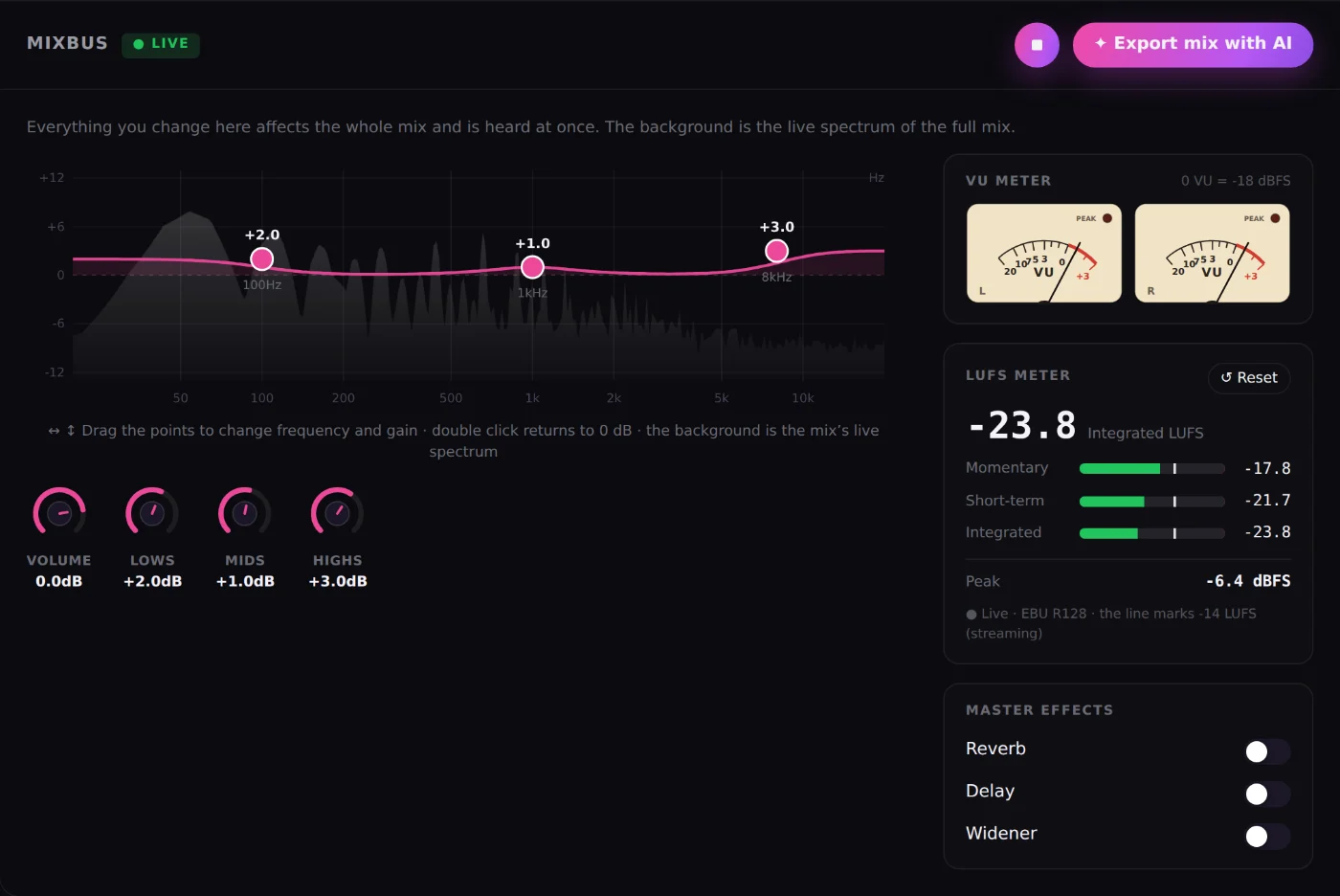
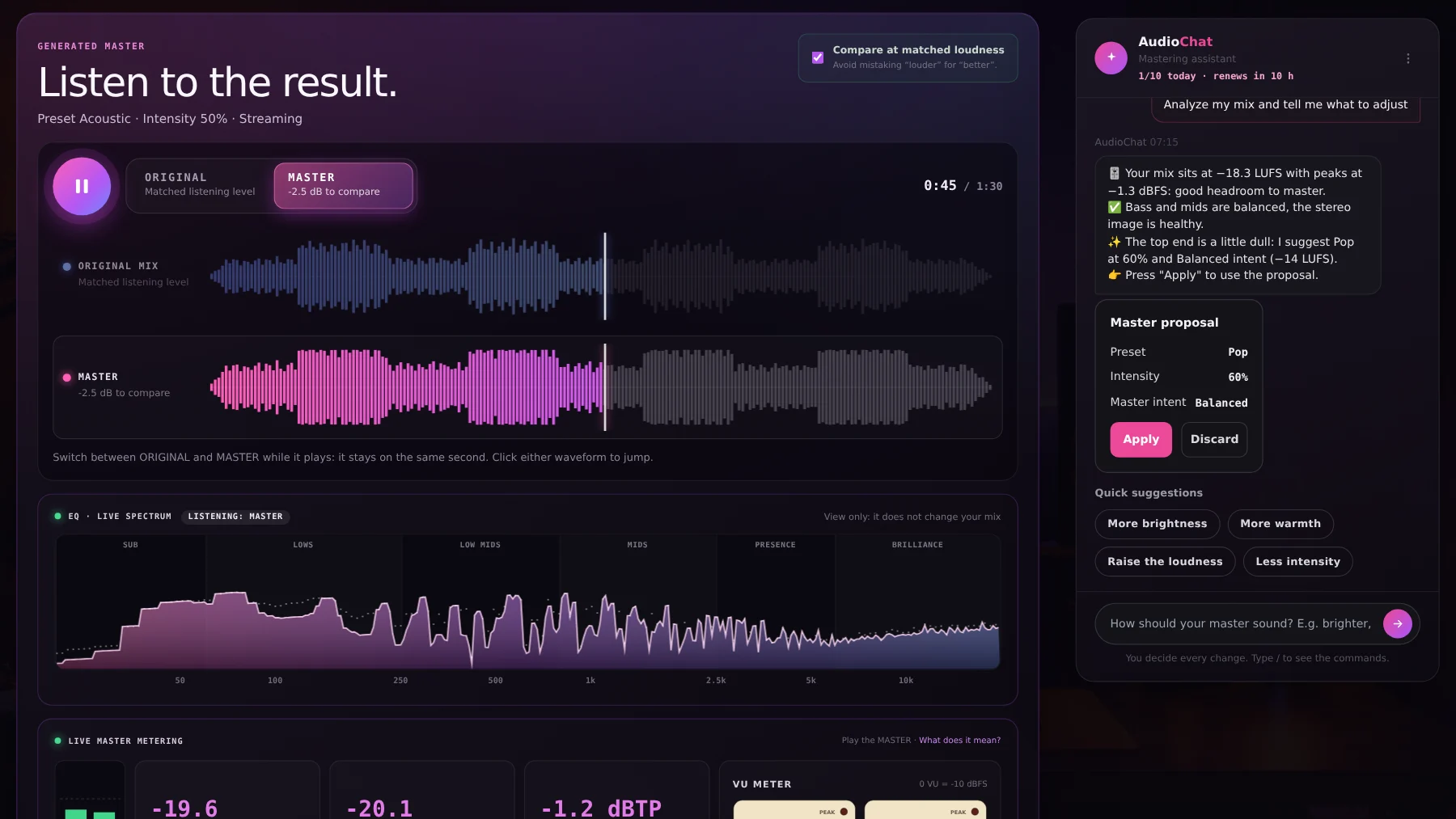
Fine-tune with per-track EQ, the MixBus with LUFS and VU, and AudioChat; then master with AI and compare the original and the master at matched loudness.
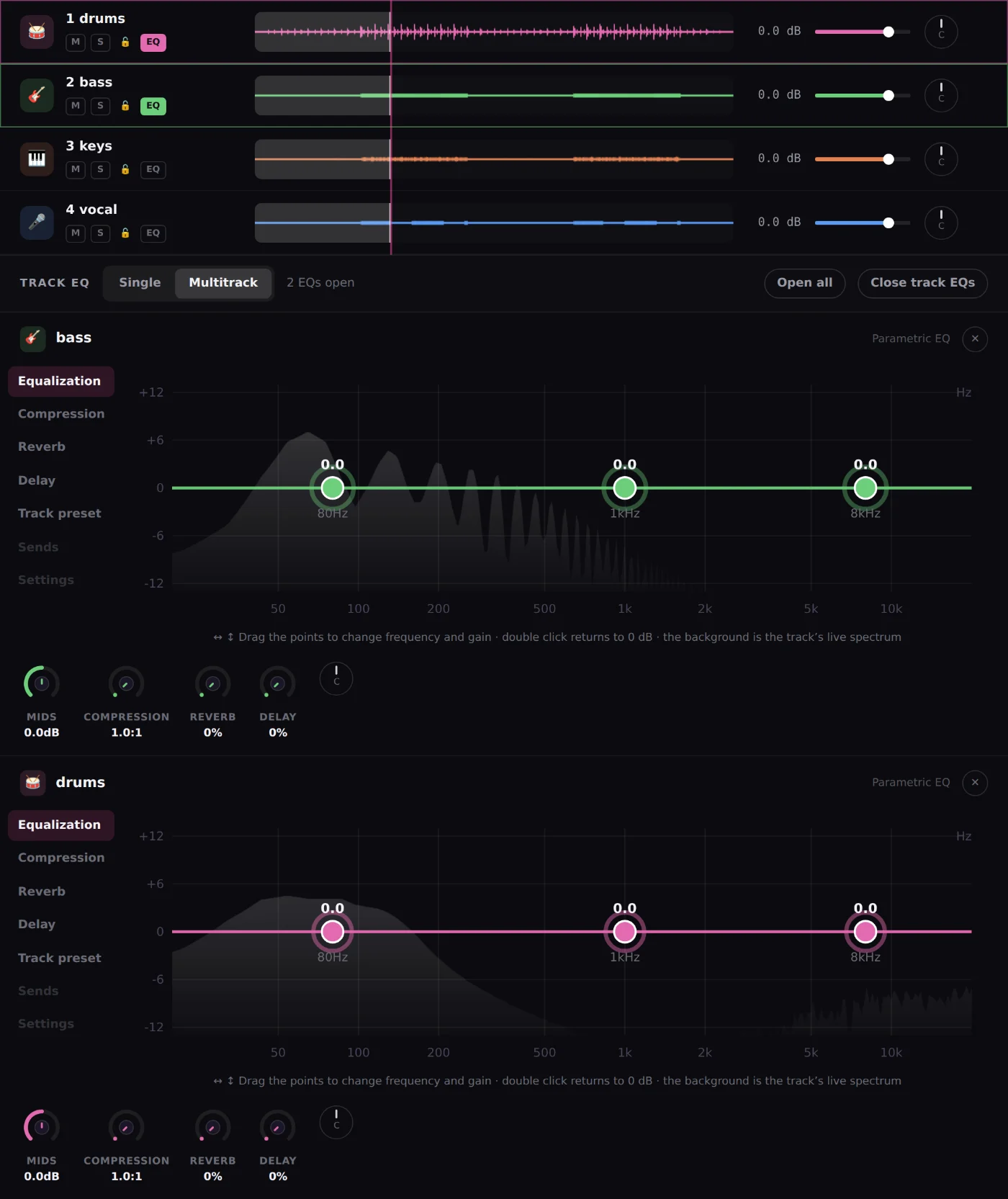
The AI mixes by style and by each track’s instrument; you decide every change.
Learn more →EQ over the live spectrum, a stereo VU meter and an LUFS meter.
Learn more →An AI chat that analyzes and adjusts a track or the MixBus with your approval.
Learn more →Hear your mix, compare original and master at matched loudness and download 24-bit WAV.
Learn more →Consolidate each track into a single clip that starts and ends with the song (and Commit if you want the plugins printed into the audio). Select the clips in the Clips List, open its menu and choose “Export Clips as Files…” in WAV format. Alternative: assign each stem to a bus or output and use File › Bounce Mix. Then upload the files to MixingMusic.AI, where the AI mixes them and you can master the result.
Commit prints the track’s insert plugins into the audio, so the file you export sounds the same as in your session. That way you do not depend on having the same plugins when mixing in MixingMusic.AI.
No. MixingMusic.AI runs in the browser and takes audio files. Pro Tools is for producing and recording; MixingMusic.AI is for mixing and mastering with AI what you exported.
Up to 12 stems per project, as WAV, MP3, FLAC, AAC or M4A. If you have more tracks, group them in your DAW (drums, backing vocals, layers) and export the groups.
Yes. You can upload the final stereo mix and use AI Mastering, or “Improve mix”. To mix track by track with AI you need the stems.
Yes: your first mix, one master and one AI try are free. After that there are one-time plans, no subscription.
Pro Tools help pages consulted. Menu names can change with your version.
Pro Tools is a trademark of Avid. MixingMusic.AI is not affiliated with Avid and Avid does not endorse this page.
Export your stems and hear the difference today.
No monthly renewal, confusing credits, or annual contracts. Free to try it, Unlimited for the whole studio and AI Advanced to work with the AI every day.
No card and no expiration.
One payment with Mercado Pago or PayPal.
One payment. Already on Unlimited? Pay only the difference.